Documentation
Create a job
Fill in role details, auto-fill from a job description, and choose your screening settings.
What it is
A job is an open role you're hiring for. Creating one sets up everything downstream: candidate matching, the public apply page, pre-interview questions, and video interview questions.
Who can use it
Admins and members. Viewers cannot create or edit jobs. Blocked entirely if your organization's trial has expired.
Where to find it
Sidebar → Jobs → New Job.
Steps
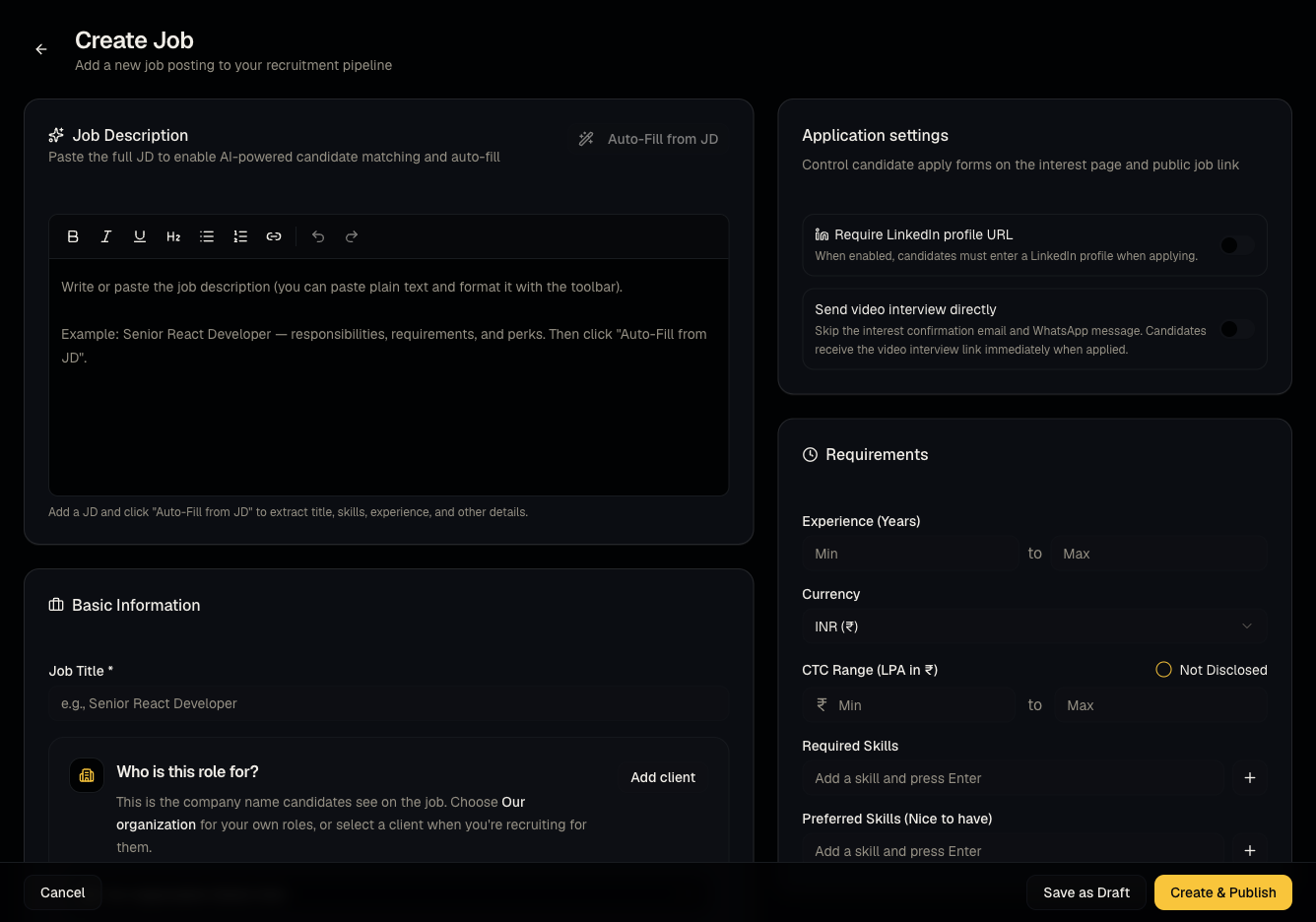
- Paste a job description and click Auto-Fill from JD to have Talynce extract title, skills, experience, and other fields automatically — or fill the form manually.
- Choose the client this job belongs to (see Manage clients).
- Fill in locations, work mode, salary/CTC, headcount, and required skills.
- Under Application settings, decide:
- Require LinkedIn profile URL on the public apply form.
- Send video interview directly — skips the interest-confirmation email/WhatsApp step and emails a video interview link the moment someone is shortlisted. See From apply to video interview for what this changes.
- Optionally attach a client report — pick an org-wide template or a client-specific saved report — this determines the pre-interview questions candidates answer when applying.
- Click Save Draft to keep working later, or Publish to make it live and matchable.
Good to know
- Auto-Fill from JD is a starting point, not a final answer — always review extracted skills, experience, and salary before publishing.
- The client report picker only shows saved reports for the client you selected — pick the client first.
- Send video interview directly is per-job. Leaving it off means candidates go through the interest-confirmation step described in From apply to video interview.
- A job with no interview questions yet can still be published — you can add video interview questions after the fact, before any invites go out.
Common questions
- Why can't I click New Job? You're a viewer, or your organization's trial has expired — see Roles and permissions.
- What's the difference between Save Draft and Publish? Draft jobs aren't visible on the public careers page or matchable; Publish makes them live.
- Can I change the client after creating the job? Yes, from the job's edit page, but doing so may change which saved report is attached.
- Do I need a report template to create a job? No — it's optional. Without one, the apply form has no custom pre-interview questions.
Related articles
Last updated: 9/17/20262 views