Sourcing Assistant (Chrome extension)
Install the Talynce Sourcing Assistant from the Chrome Web Store, then fill your Naukri Resdex search from a job, score each page of results and import candidates with their CV.
What it is
Talynce Sourcing Assistant is a Chrome extension for recruiters who search for candidates on Naukri Resdex and track them in Talynce. Pick one of your Talynce jobs in it, and it:
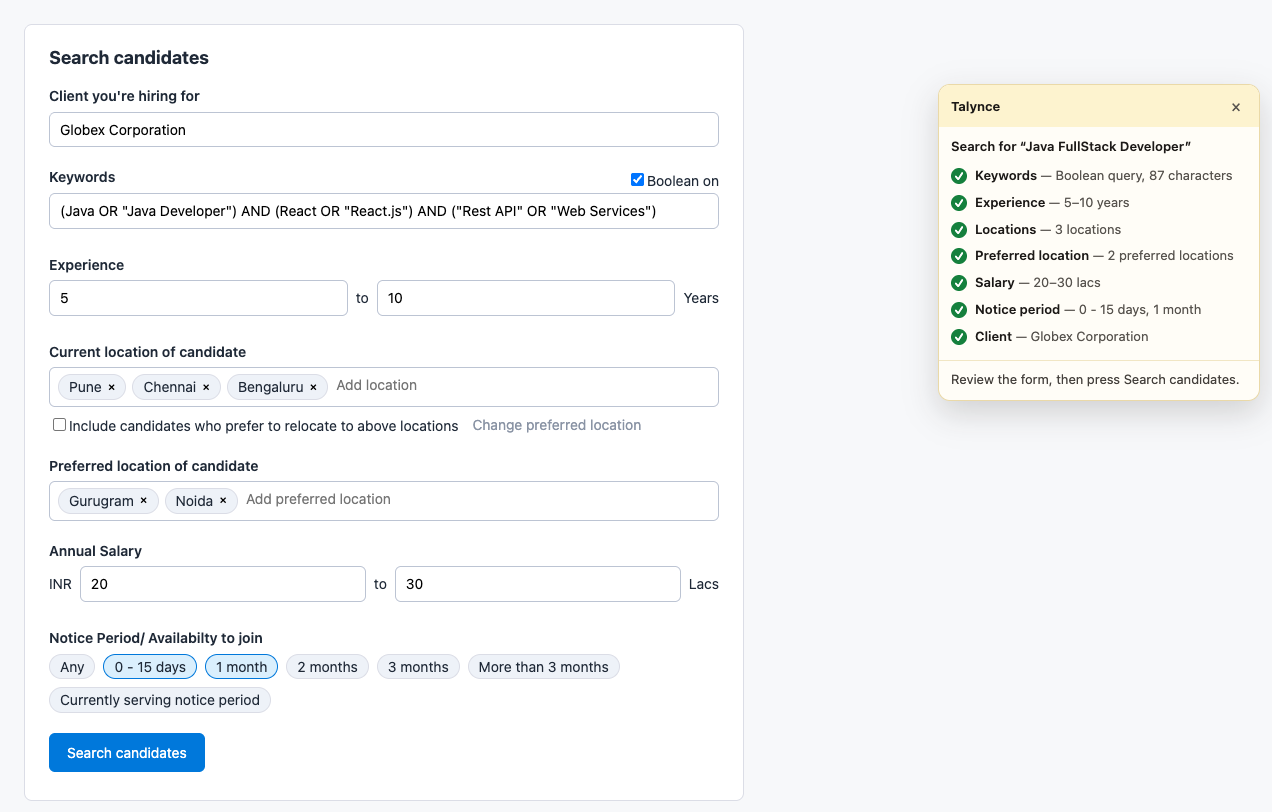
- Fills Resdex's search form from the job: keywords or a Boolean query, experience, locations, salary and notice period. You check the form and press Search yourself.
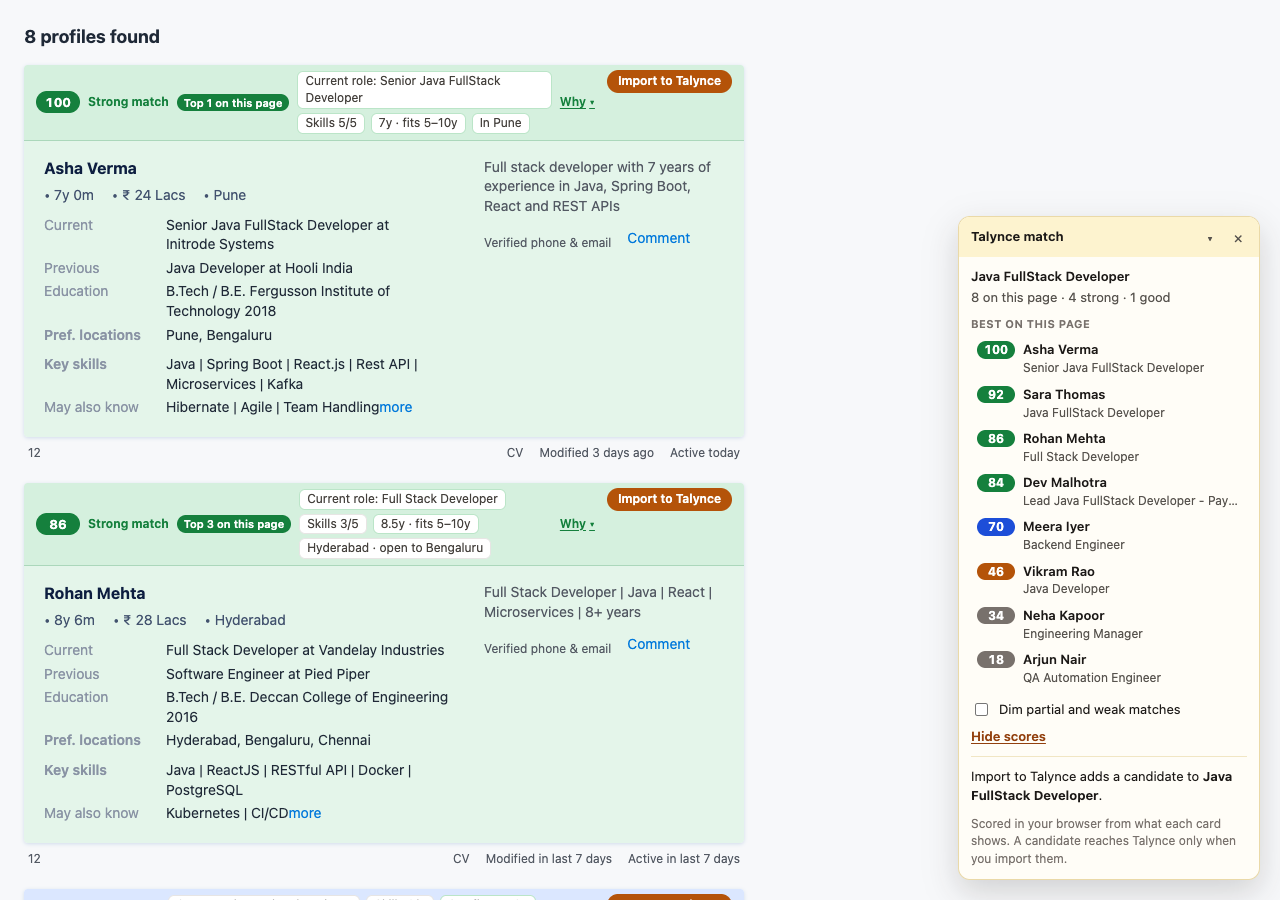
- Scores every candidate on a results page out of 100 against that job, with a one-line reason, and marks the three best, so you know whose profile to open first.
- Imports a candidate into Talynce with the CV you download from their profile, and adds them to the job.
It works on Naukri Resdex today; other portals are coming.
Who can use it
Anyone in your organization can install it, on a desktop Chrome (version 116 or later). Importing candidates needs the admin or member role, as adding them in Talynce does. The extension has no login of its own: it uses the Talynce session of the same Chrome profile, so you must be signed in to Talynce there, and to Resdex with your own Resdex account.
Where to find it
- Talynce Sourcing Assistant on the Chrome Web Store
- On your Dashboard, the Talynce Sourcing Assistant section has the same link, the install steps and a link to this page.
Steps: install it
-
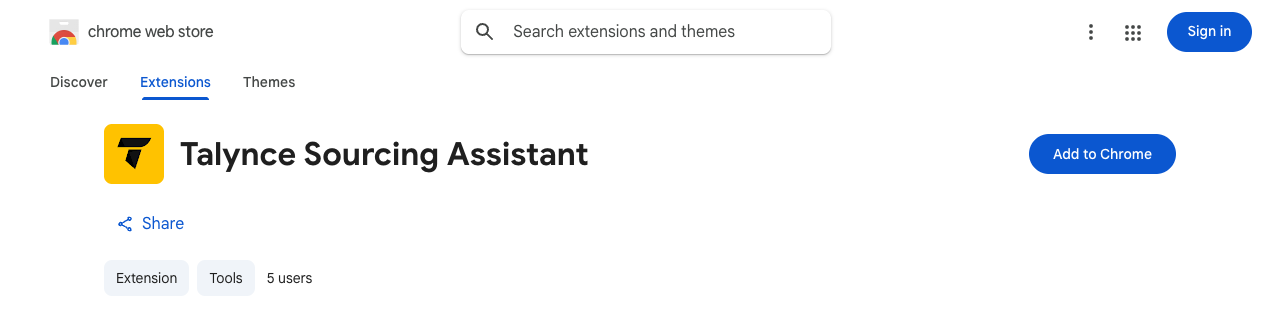
Open the extension's page on the Chrome Web Store in Chrome and click Add to Chrome.
-
Chrome asks to add Talynce Sourcing Assistant and lists what it may do: read and change your data on Resdex and on talynce.com. It needs both: Resdex to fill the search and score the results, Talynce to read your jobs and import candidates. Click Add extension.
-
Pin it: click the Extensions button in Chrome's toolbar (the jigsaw piece), then the pin beside Talynce Sourcing Assistant. Its yellow Talynce icon stays in the toolbar.
-
Sign in to Talynce in the same Chrome profile, if you aren't already.
-
Open Naukri Resdex and click the Talynce icon. The popup shows your name and organization under the title, and your active jobs.
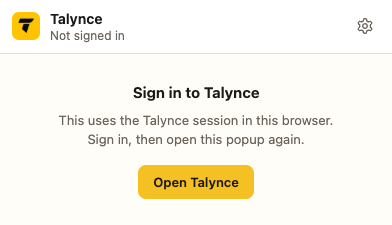
If the popup says Not signed in, sign in to Talynce in that Chrome (its Open Talynce button takes you there), then open the popup again.
Steps: use it
Select a job
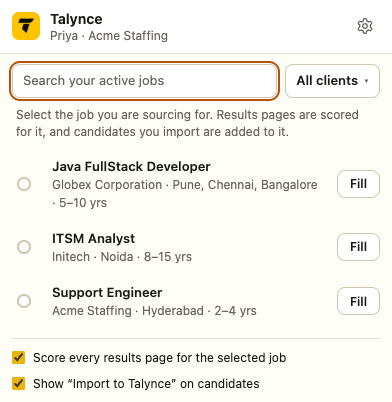
The popup lists your active Talynce jobs. Search by title or client, or narrow the list to one client with the button beside the search box. Press the round button beside a job to select it: the selected job is the one results pages are scored for and candidates are imported into, and it stays selected until you change it.
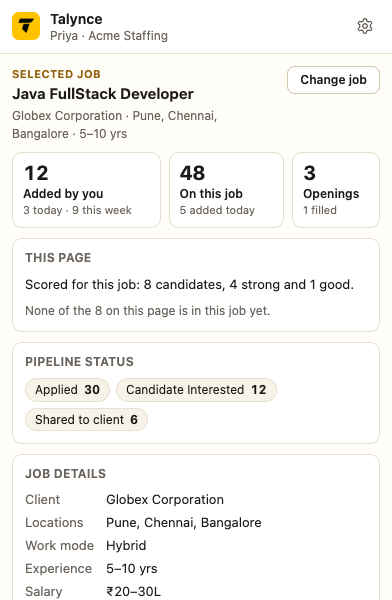
Over a results page or a candidate's profile, the popup shows the selected job instead: how many candidates you added to it today and this week, everyone on it, how the page in front of you scored, its pipeline and its details. Change job brings the list back.
Fill the search
- On Resdex, open Search Resumes.
- Press Fill beside the job, or click the job to review and edit its search first, then Fill search form.
- Check the form and press Search candidates yourself. The extension fills the form and stops there.
The job's Notice Period selects Resdex's notice period options up to it, plus Currently serving notice period (up to 30 days selects 0 - 15 days, 1 month and currently serving); a job set to any notice period uses what you chose last time. For a contract job with a monthly or yearly rate, the rate over a year is the maximum annual salary (₹1,50,000 a month fills up to 18 lacs); an hourly or daily rate leaves the salary empty. You can change either in the popup before filling.
A panel on the page and the popup both list each field and whether Resdex accepted it.
Read the scores
Every candidate card on a results page gets a score out of 100 for the selected job, with a short reason. Strong matches (75 and over) are tinted green and good ones (60 and over) blue, and the three best are marked Top 1–3. A panel in the corner lists the best ten; Why on a card opens the full breakdown (role, skills, experience, location, salary and how recently they were active).
Import a candidate
- Press Import to Talynce on a card. Their profile opens in a new tab.
- On the profile, press Resdex's own Download on the CV.
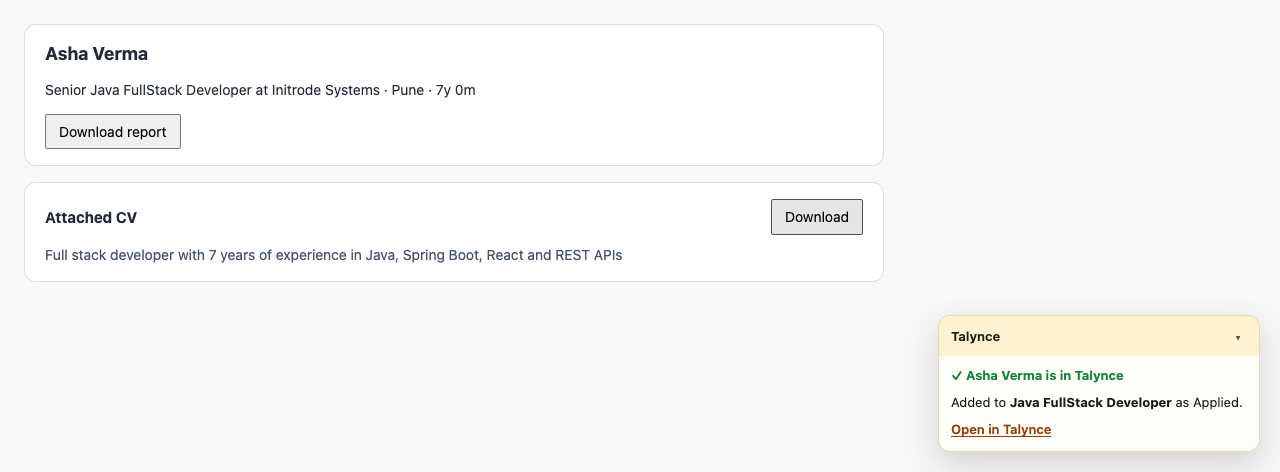
- The extension sends that CV to Talynce. A few seconds later the profile says the candidate is in Talynce, with a link, and their card shows ✓ In Talynce.
Good to know
- Importing adds the candidate to the job as Applied, the same as uploading their CV on the job's page. That starts your organization's first-contact steps for a new applicant where you have them switched on (the outreach email, a video interview invite or an AI call). The profile panel says so before you import.
- If your organization already has a candidate with that email address, that candidate is used and their CV updated, not duplicated. Imported candidates count towards your plan's candidate limit.
- Talynce reads PDF and Word CVs of up to 10 MB. If an import is turned down (a plan limit, a file it can't read, a job that was closed), the profile says why and offers Try again.
- Scores are worked out in your browser from what each card shows. Nothing about a candidate is sent to Talynce until you import them, and the extension never opens a profile or presses Download for you.
- The score is a first sort of one page, from the card alone. It is not Talynce's own match score, which the candidate gets once imported.
- Untick Score every results page for the selected job in the popup to score only the pages you ask for, or Show "Import to Talynce" on candidates to take the buttons off Resdex's pages.
- After the extension updates, reload any Resdex tab that was already open.
Common questions
- The popup says Not signed in, but I am signed in to Talynce. The extension uses the session of the same Chrome profile. Sign in to Talynce in that profile (not in another browser or an incognito window), then open the popup again.
- My job isn't in the list. The list shows active jobs only. A closed, paused or filled job can't take imports.
- Nothing is scored on a results page. Select a job in the popup first: with no job selected, nothing is scored. If you stopped scoring for that search with the × on the panel, press Score it again.
- Does it work in other browsers? It is published for Chrome.
Related articles
Do not confuse with
- AI Match, which ranks the candidates already in your Talynce database (and the global talent pool) for a job. The extension scores candidates on Resdex's results pages, before they are in Talynce. See Match your database.
- Bulk resume upload, for adding many CVs you already have. The extension imports one candidate at a time, straight from their Resdex profile.