Documentation
Candidate profiles
Skills, resume, documents, application history, and re-analyzing a candidate's ratings.
What it is
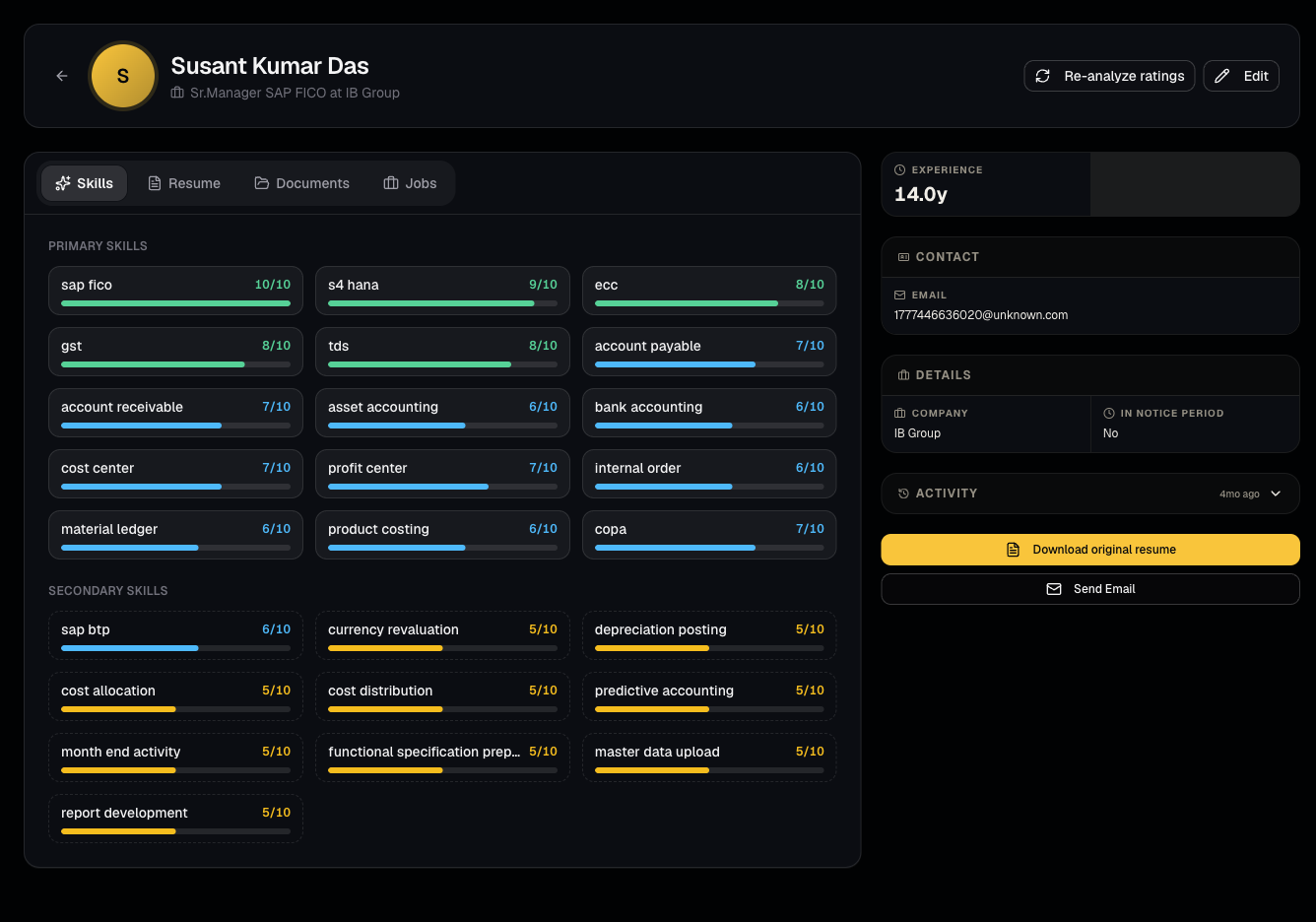
A candidate's profile page is the single record for everything known about them: contact info, resume, extracted skills, documents, and every job they've been applied to.
Who can use it
Everyone can view; admins and members can edit.
Where to find it
Click any candidate from Candidate database to open /dashboard/candidates/[id].
Steps
- Review tabs: Skills, Resume, Documents, Jobs (application/pipeline history across every job they've touched).
- Download or preview the resume directly.
- Use Re-analyze to refresh AI-extracted skills/ratings if you've updated their resume or documents.
- See per-job pipeline status inline on the Jobs tab — click through to Pipeline for full drawer actions.
Good to know
- Contact fields (email/phone) appear masked with a Reveal prompt if this candidate originated from the unrevealed global talent pool.
- Re-analyzing overwrites previous AI-extracted skill ratings — use it after uploading a newer resume, not casually.
Common questions
- Can I edit a candidate's resume text directly? You can replace the resume file; extracted skills come from AI parsing of whatever file is on record.
- Why does this candidate show multiple job rows on Jobs tab? They've been applied/shortlisted to more than one role — each has its own pipeline status.
- Can I delete just one document without deleting the whole candidate? Yes, remove individual files from the Documents tab.
- Who can see a candidate's masked contact info before it's revealed? Everyone sees the masked placeholder; only revealing (1 credit) unmasks it for your whole organization.
Related articles
Last updated: 9/17/20264 views