What it is
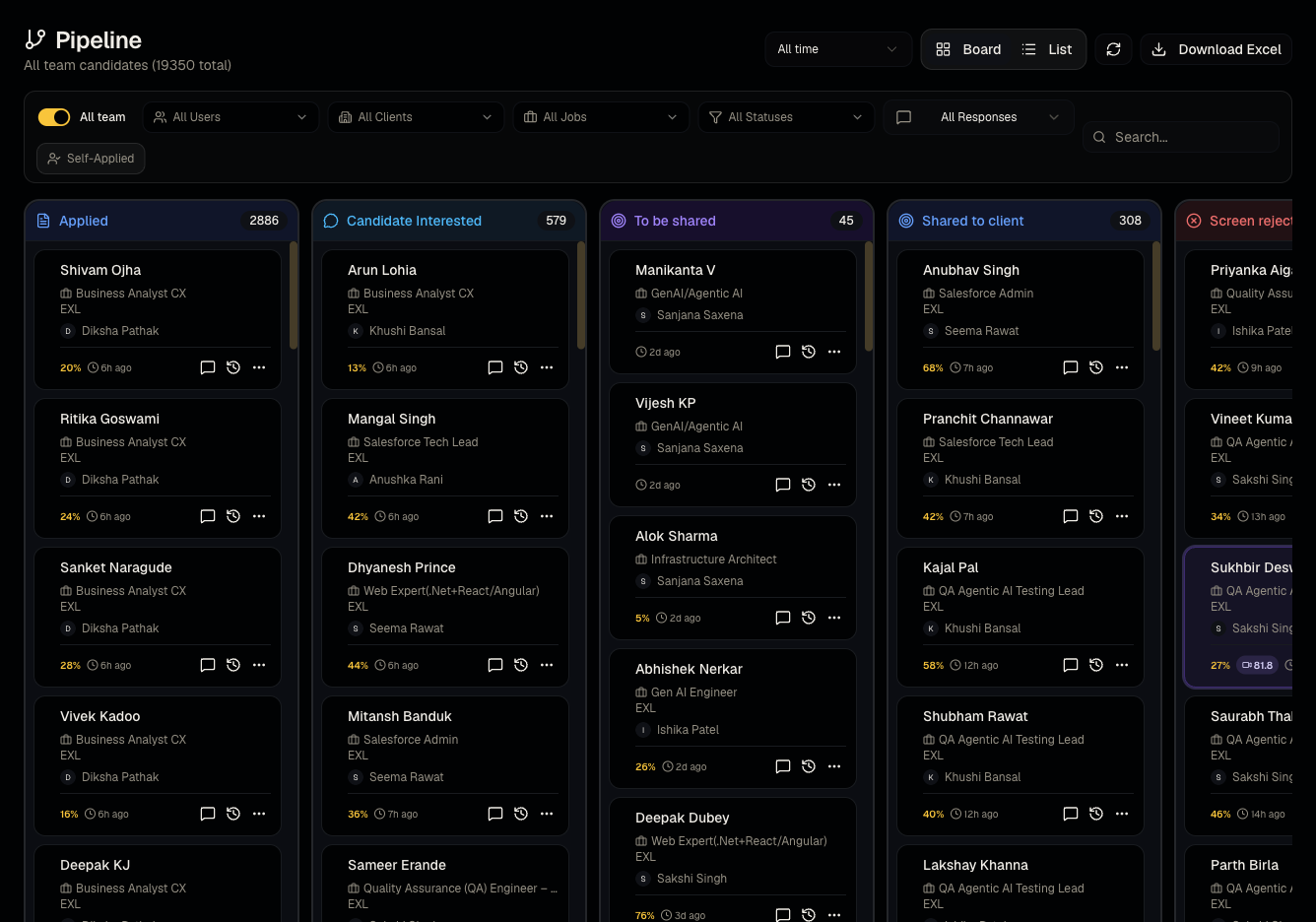
The Pipeline is where every candidate-job application lives as it moves through your hiring stages — from Applied through to Hired (or rejected). It's the operational heart of day-to-day recruiting.
Who can use it
Everyone can view. Admins and members can change statuses and edit; viewers are read-only.
Where to find it
Sidebar → Pipeline.
Steps
- Toggle Board (kanban) or List view.
- Toggle All team to see everyone's candidates, or narrow to My candidates.
- Filter by job, client, recruiter, status, date range, or candidate response.
- In Board view, drag a card between status columns to update its stage, or open the card to use the drawer.
- Download Excel to export the current filtered view.
Good to know
- Large pipelines paginate — use Show more or scroll to load additional cards rather than assuming the board is complete after the first screen.
- Excel export respects whatever filters are currently applied, not the whole pipeline.
- Self-applied candidates (who applied through your public job link without a recruiter shortlisting them) appear with no recruiter attribution and typically start at a status like Candidate Interested rather than a recruiter-assigned stage.
Common questions
- Why don't I see a candidate I know applied? Check your filters — especially the All team toggle if a teammate shortlisted them, and any active status/date filters.
- Can I bulk-move candidates between statuses? Status changes are per-card; use filters to isolate a group first if you need to work through many one at a time.
- What's the difference between Board and List view? Board is a kanban layout grouped by status; List is a flat, sortable table — both show the same underlying data.
- Can I filter to a single job's pipeline only? Yes, use the job filter — this is often faster than opening the job's own Candidates tab for a quick scan.
Related articles
Last updated: 9/17/20268 views