Documentation
Bulk resume upload
Upload up to 500 resumes at once and let AI parse them into candidate records.
What it is
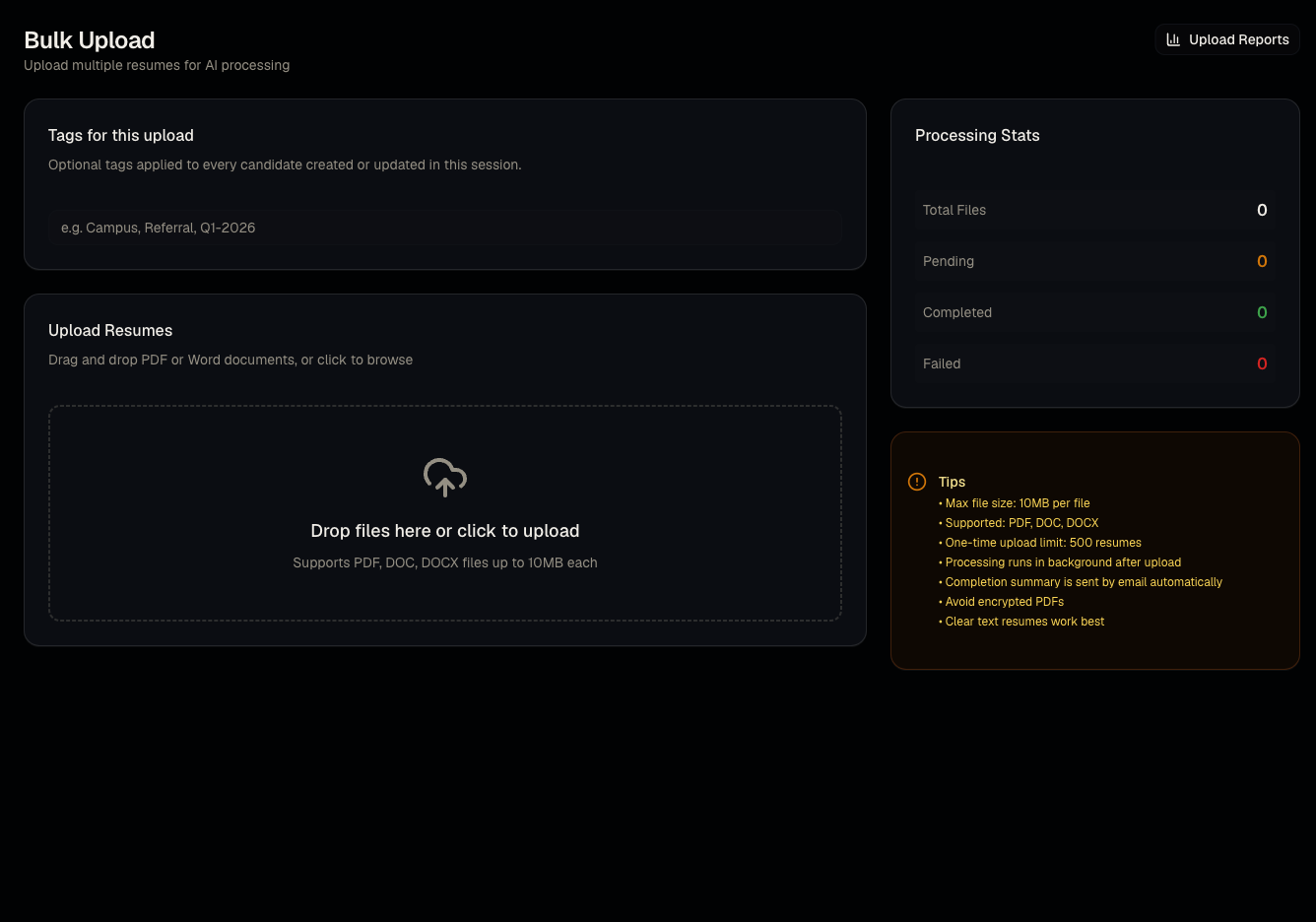
Bulk Upload lets you drag and drop many resumes at once instead of adding candidates one by one. Talynce parses each file with AI and creates or updates candidate records automatically.
Who can use it
Admins and members. Not available to viewers (hidden from their sidebar). Blocked if your organization's trial has expired.
Where to find it
Sidebar → Bulk Upload, under the "Operations" group (only visible to admins/members).
Steps
- Open Bulk Upload and drag in files — PDF, DOC, or DOCX — up to 500 files per session.
- Optionally tag the whole session (e.g., a job fair name or source) so you can filter these candidates later.
- Submit — processing happens in the background; you don't need to keep the tab open.
- Check outcomes on Bulk upload reports once processing finishes.
Good to know
- Uploading a resume for someone already in your database updates their existing record rather than creating a duplicate (matched by contact details) — this shows as "Updated" in the report, not "New."
- Large batches process asynchronously; don't assume failure just because candidates don't appear instantly — check the report page for real-time/near-real-time status.
- This is for resumes, not spreadsheets. To import structured data via Excel, see the spreadsheet mapping tool inside Client reports — that tool builds a report, not new candidate records.
Common questions
- What file types are supported? PDF, DOC, and DOCX only.
- What happens to duplicates? They're matched and updated, not duplicated, based on contact info.
- Can I bulk-upload from Excel/CSV? Not for creating candidates — only resumes are parsed here.
- How do I know if an upload failed? Check Bulk upload reports for a per-file New/Updated/Failed/Pending breakdown.
Related articles
Last updated: 9/17/20263 views