Documentation
Client reports
Build a custom, exportable candidate grid for a specific client from a template or a spreadsheet.
What it is
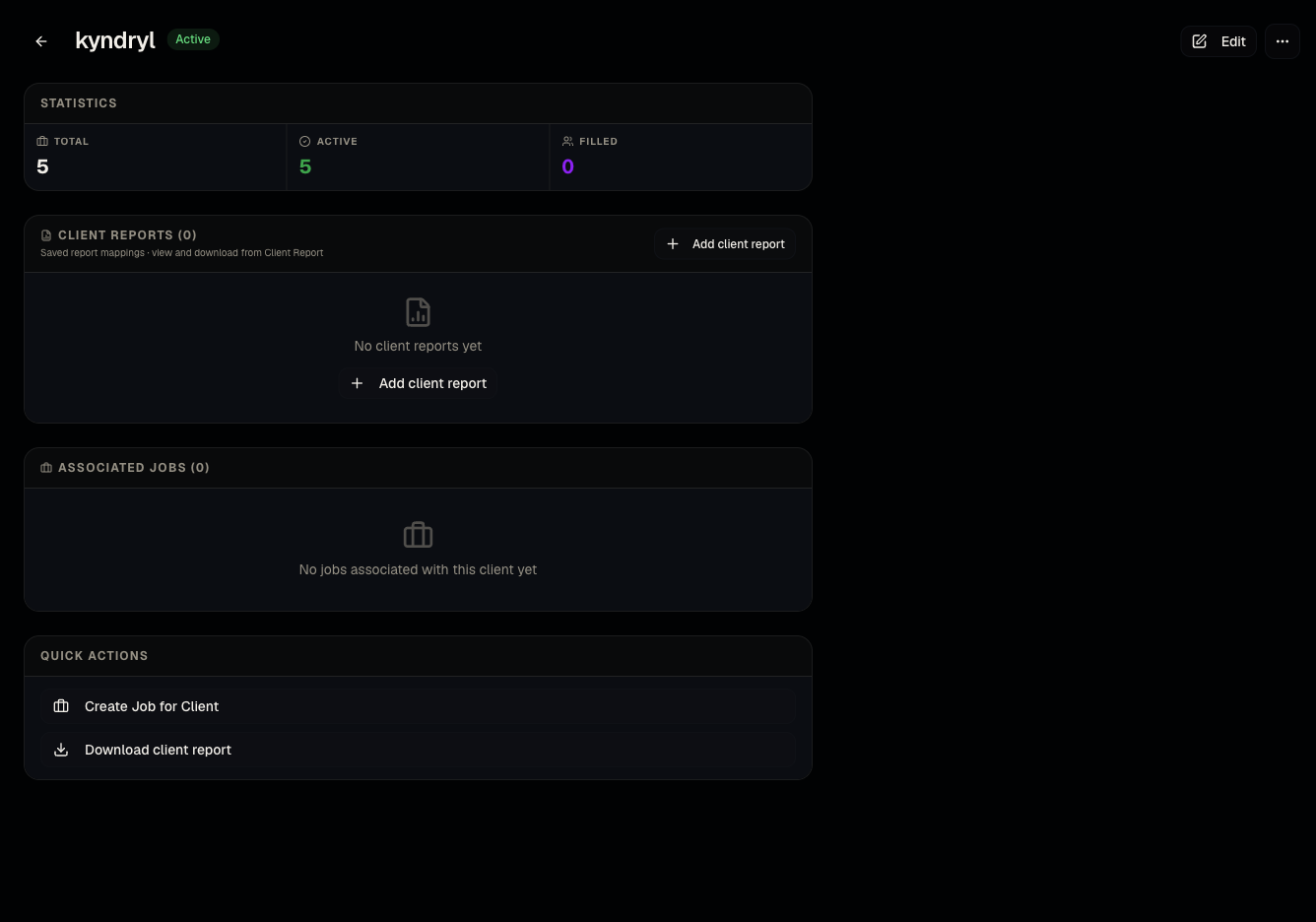
A client report is a saved, customizable grid of jobs and candidates for one client — the kind of deliverable you'd send back to a hiring manager. It's separate from the analytics in Hiring Intelligence.
Who can use it
Admins and members, from a client's detail page.
Where to find it
Clients → (open a client) → Reports — create at /dashboard/clients/[id]/reports/new, edit at /dashboard/clients/[id]/reports/[reportId]/edit. All saved reports for a client are also browsable from Reports → Client jobs and candidates — see Client jobs and candidates.
Steps
- From a client's page, choose New Report.
- Either start from an org-wide report template (see Report templates) or upload a spreadsheet.
- If uploading: pick a
.xlsxfile (max 2MB, up to 5,000 rows) and map its columns to Talynce fields. - Edit the resulting grid like a spreadsheet — cells, column layout, and field mapping are all adjustable.
- Copy, edit, or delete existing reports from the client page.
- Download Excel to export the current view at any time.
Good to know
- Excel import here is for report column mapping, not bulk candidate import. Uploading a spreadsheet builds a report layout; it does not create or update candidate records in your database. If you want to add candidates in bulk, use Bulk resume upload instead.
- Template vs saved report: a report template (Administration → Report templates) is an org-wide reusable layout that can also define pre-interview questions used on job apply forms. A saved report here is the client-specific instance — it can start from a template but is edited independently afterward.
- Large spreadsheets (over 5,000 rows or 2MB) will fail to import — split them first.
Common questions
- Where do the pre-interview questions on a job's apply form come from? From the report template attached to the job at creation — see Pre-interview questions.
- Can I share a report link with my client? Yes, saved reports support a share link in addition to Excel export.
- I don't see this report in the Reports menu — why? The Reports → Client jobs and candidates view and the client-page report are the same underlying data, just accessed from two entry points — see Reports overview.
- Can I copy a report to reuse its layout for a different client? Yes, use Copy on an existing report, then repoint it at the new client and adjust as needed.
- What happens to a report if I delete the client report template it started from? The saved report keeps its own copy of the layout — deleting the source template later doesn't break it.
Related articles
Last updated: 9/17/20264 views