Documentation
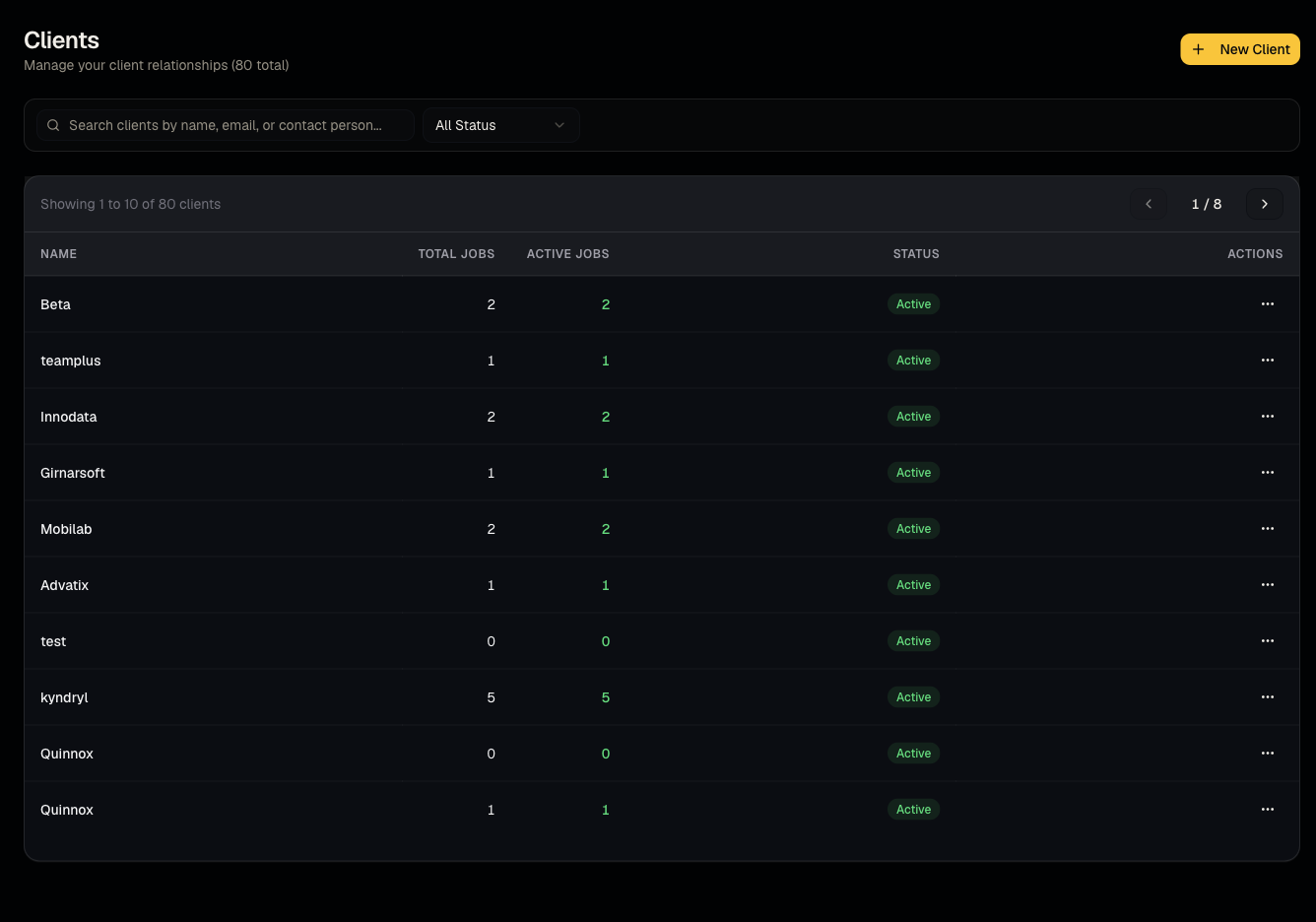
Create and manage clients
Add hiring clients, search and filter the client list, and edit client details.
What it is
A client represents a company you hire for — your own company if you're an in-house team, or each of your customers if you're an agency. Jobs and reports are attached to a client.
Who can use it
Admins and members can create/edit clients. Viewers can only view the list.
Where to find it
Sidebar → Clients.
Steps
- Open Clients and use search or the status filter to find an existing client.
- Click New Client (or similar) to open the create form: company name, contacts, status, and branding fields.
- Save — the client now appears in the picker when creating a job.
- Click into a client to see its detail page: overview stats, all linked jobs, and client reports.
- Edit or change status from the client detail page at any time.
Good to know
- A client must exist before you can attach a saved (client-specific) report to a job — the report picker on job creation only offers saved reports for clients that already exist.
- Changing a client's status doesn't delete or hide its existing jobs; it's informational (e.g., active vs inactive relationship).
Common questions
- Do I need a client for every job? Yes — every job is linked to a client, even if that "client" is your own company.
- Can I merge two clients? Not from the UI; contact support if you created a duplicate.
- Who can create clients? Admins and members; viewers cannot.
- Can I set a status like "Inactive" for a client I'm no longer working with? Yes, status is informational and doesn't hide their existing jobs or history.
- Does deleting a client delete its jobs and candidates too? Treat client deletion as destructive to its jobs — reassign or export anything you need first, and check with support if unsure.
Related articles
Last updated: 9/17/20264 views