Documentation
Video interview questions
The on-camera question set the AI interview asks candidates for this job.
What it is
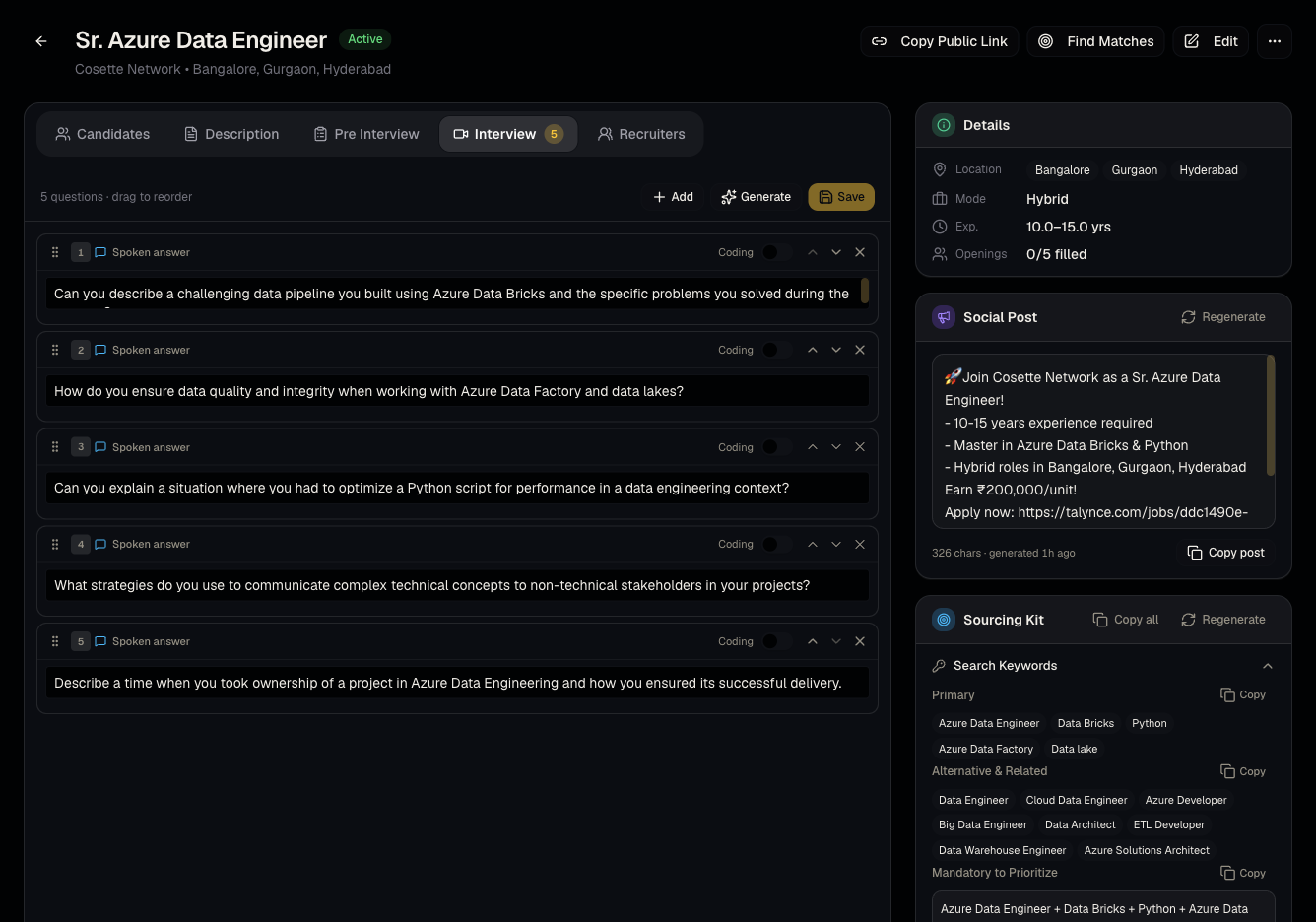
This is the set of questions a candidate answers on camera during an AI video interview for this specific job.
Who can use it
Admins and members configure it; candidates answer it via their video interview link.
Where to find it
Job detail page → Interview tab.
Steps
- Open a job → Interview tab.
- Add, edit, reorder, or remove interview questions.
- Publish/save — new video interview invites sent from this point use the current question set.
- Completed answers are reviewed in Video interviews.
Good to know
- If you edit questions after some candidates have already completed interviews, existing recordings are not affected — only new invites use the updated set.
- A job with zero interview questions cannot trigger an automatic video invite (there's nothing to ask) — see From apply to video interview.
- You can also interview someone without a job at all using Create resume interview, which generates questions from their resume instead of this tab.
Common questions
- How many questions should I add? Keep it focused — most teams use 3–6 questions to keep interviews short.
- Can candidates skip a question? Behavior depends on how the interview experience is configured for your organization; check a completed session in Screening to confirm.
- Can I reorder questions after candidates have already started interviewing? Yes, but reordering only affects invites sent after the change — sessions already in progress keep their original order.
- Are these questions the same for every candidate on this job? Yes — the question set is per-job, not per-candidate.
Related articles
Last updated: 9/17/20264 views