Documentation
Review AI video interviews
Filter, watch, score, and export completed AI video interview sessions.
What it is
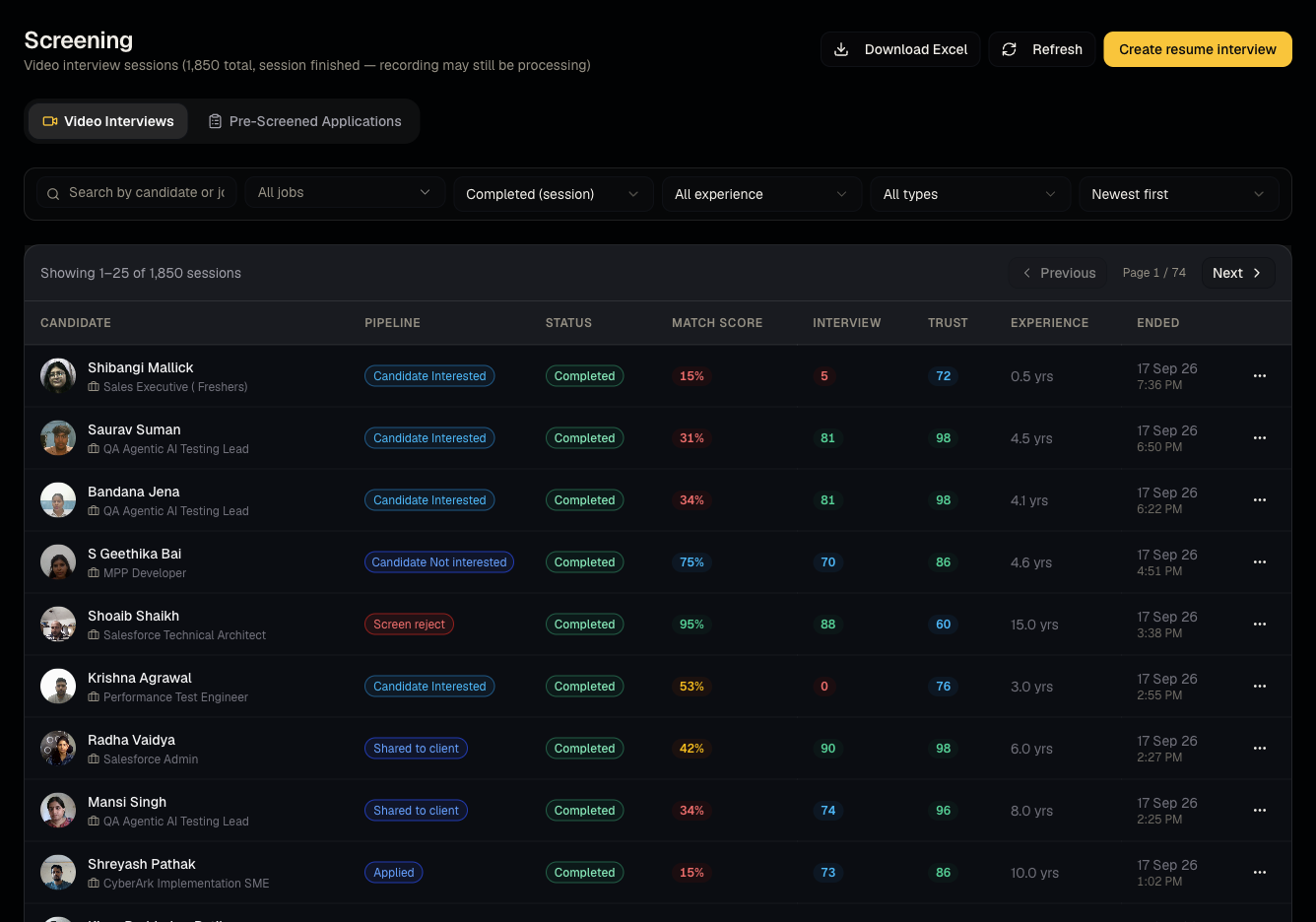
The Video Interviews tab is your library of every completed (and in-progress) AI video interview session across your organization's jobs.
Who can use it
Everyone can view; admins and members can retake/export.
Where to find it
Sidebar → Screening → Video Interviews tab. Open a session at /dashboard/screening/[interviewId].
Steps
- Filter by job, session status, experience, or interview type; sort as needed.
- Open a session to watch recorded answers, read AI-generated scores/summary, and view proctoring signals if available.
- Download Excel to export the current filtered list.
- Use the row menu for New link / retake — see Share and retake.
Good to know
- Dashboard-created video interviews do not consume Talynce credits. Credits are only charged for video interviews created through the public API (10 credits each) — see What credits cost. Don't worry about "wasting" credits by inviting candidates from the dashboard.
- Match scores and interview scores are two different numbers — match score comes from AI Match, interview score comes from the video session itself.
Common questions
- Does watching or exporting cost credits? No.
- Why is a session stuck "in progress"? The candidate may not have finished; check back later or use retake if the link expired.
- Can I see interviews for a job without opening the job itself? Yes — filter this tab by job directly.
- Can I filter to only interviews I sent myself? Yes, most list views support filtering by the recruiter who sent the invite.
- Is there a way to compare two candidates side by side? Open each in its own tab; there's no dedicated side-by-side comparison view today.
Related articles
Last updated: 9/17/20264 views