What it is
The organization's user list — every person with dashboard access, their role, and their status.
Who can use it
Admins only.
Where to find it
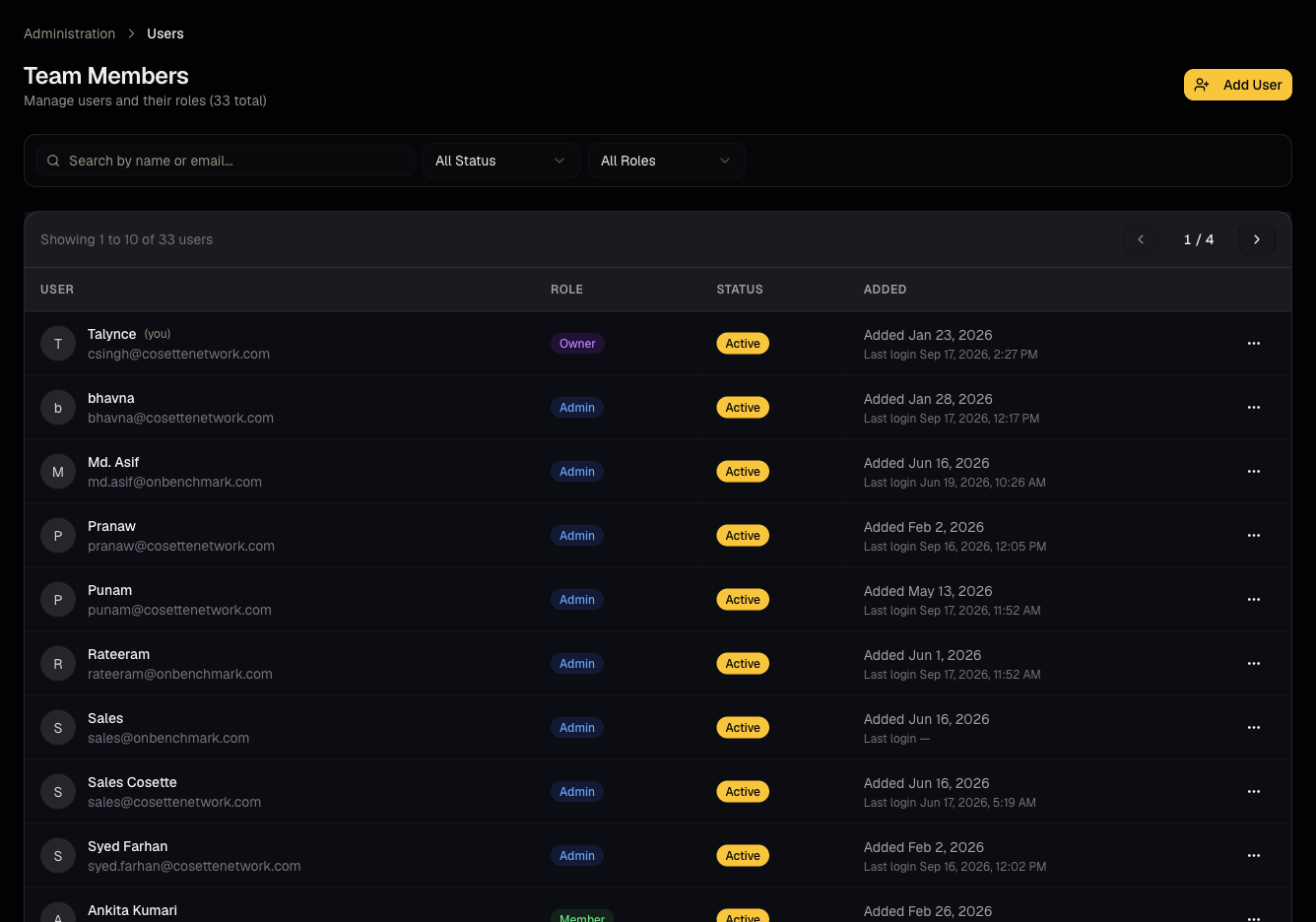
Steps
- Click Invite and enter the new teammate's email and role (admin, member, or viewer — see Roles and permissions).
- Edit an existing user's identity details or role at any time.
- Deactivate a user to revoke access without deleting their history, or reactivate later.
- Remove a user from the organization entirely if needed.
Good to know
- Seats are limited by your plan — inviting beyond your seat limit will be blocked; upgrade or free up a seat first.
- Deactivating (rather than removing) preserves the user's historical attribution on candidates and jobs they worked — prefer deactivate over remove unless you're certain you want their history detached.
Common questions
- Can a member invite users? No — only admins.
- What happens to a deactivated user's candidates? They remain assigned to that user historically; reassign manually if needed for ongoing work.
- Can I have unlimited viewers? Check your plan's seat limits — viewers typically still count toward your seat count.
- Can I change my own role? No — ask another admin to change it, since self-demoting could lock you out of admin functions.
- What email does the invite come from? A Talynce-branded invite email is sent to the address you enter; ask the invitee to check spam if it doesn't arrive promptly.
Related articles
Last updated: 9/17/20264 views