What it is
A personal, saved list of quick links — most commonly used to bookmark a specific Client Report view (report + optional job filter) so you don't have to re-select filters every time.
Who can use it
All roles — shortcuts are personal to each user.
Where to find it
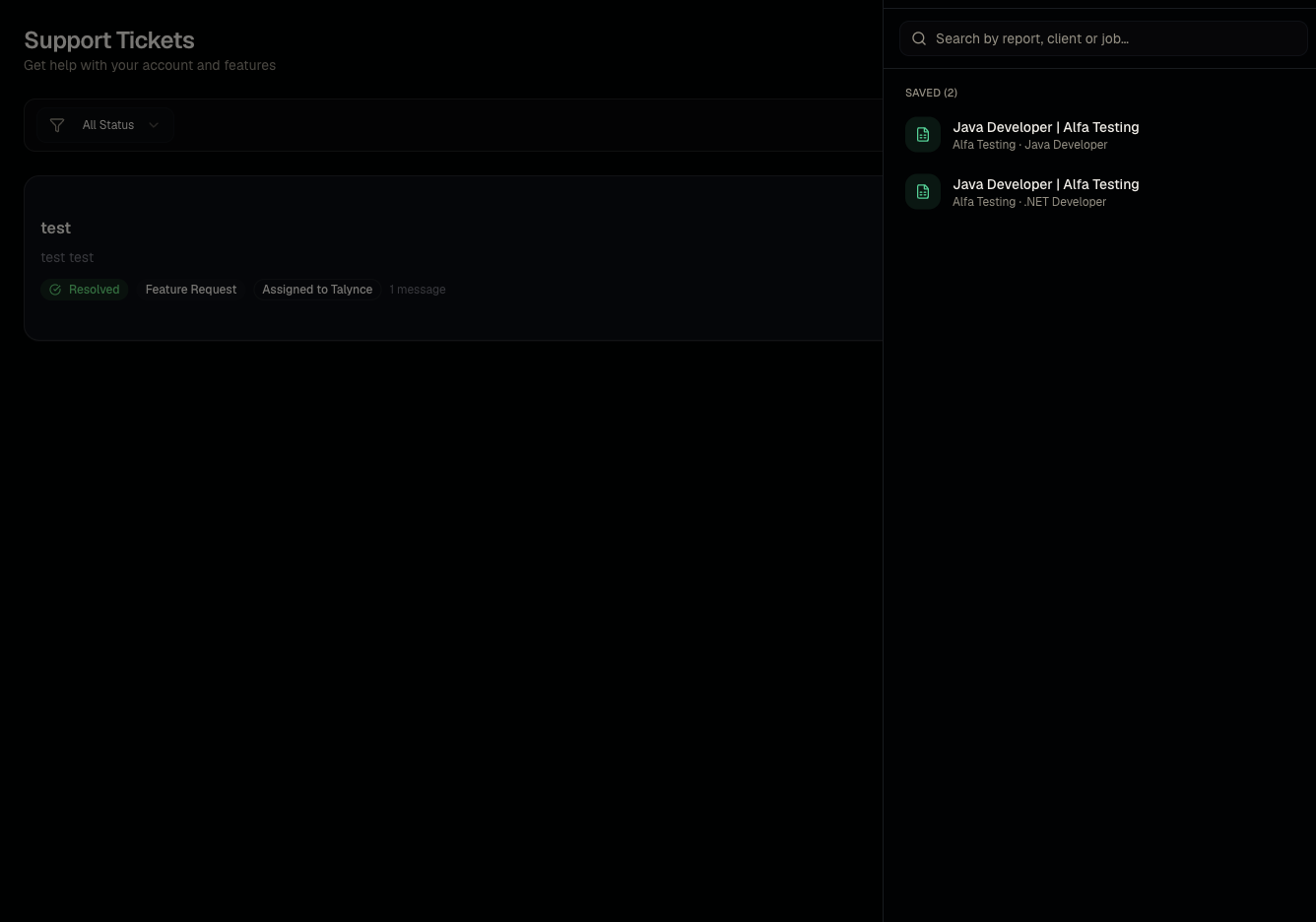
Header bookmark icon opens the Shortcuts drawer.
Steps
- From a report view you use often, save it as a shortcut.
- Open the header bookmark icon any time to jump straight back.
- Reorder shortcuts or open one in a new tab from the drawer.
Good to know
- Shortcuts are per-user, not shared with your team — a teammate won't see the shortcuts you save.
Common questions
- Can I share a shortcut with a teammate? Not directly — share the underlying report link instead (see Client jobs and candidates).
- How many shortcuts can I save? There's no meaningfully low limit for typical use — save as many as help your workflow.
- Do shortcuts work for pages other than reports? They're primarily built around Client Report views; other page types may not currently support saving as a shortcut.
- Can I rename a saved shortcut? Check the drawer for a rename/edit option; otherwise remove and re-save it with the filters you want.
Related articles
Last updated: 9/17/20264 views